Publish to Test and Prod
Put your draft on Test as a new version, put a version you tried on Prod for real traffic, see what Prod runs, and roll back after a mistake.
Steps
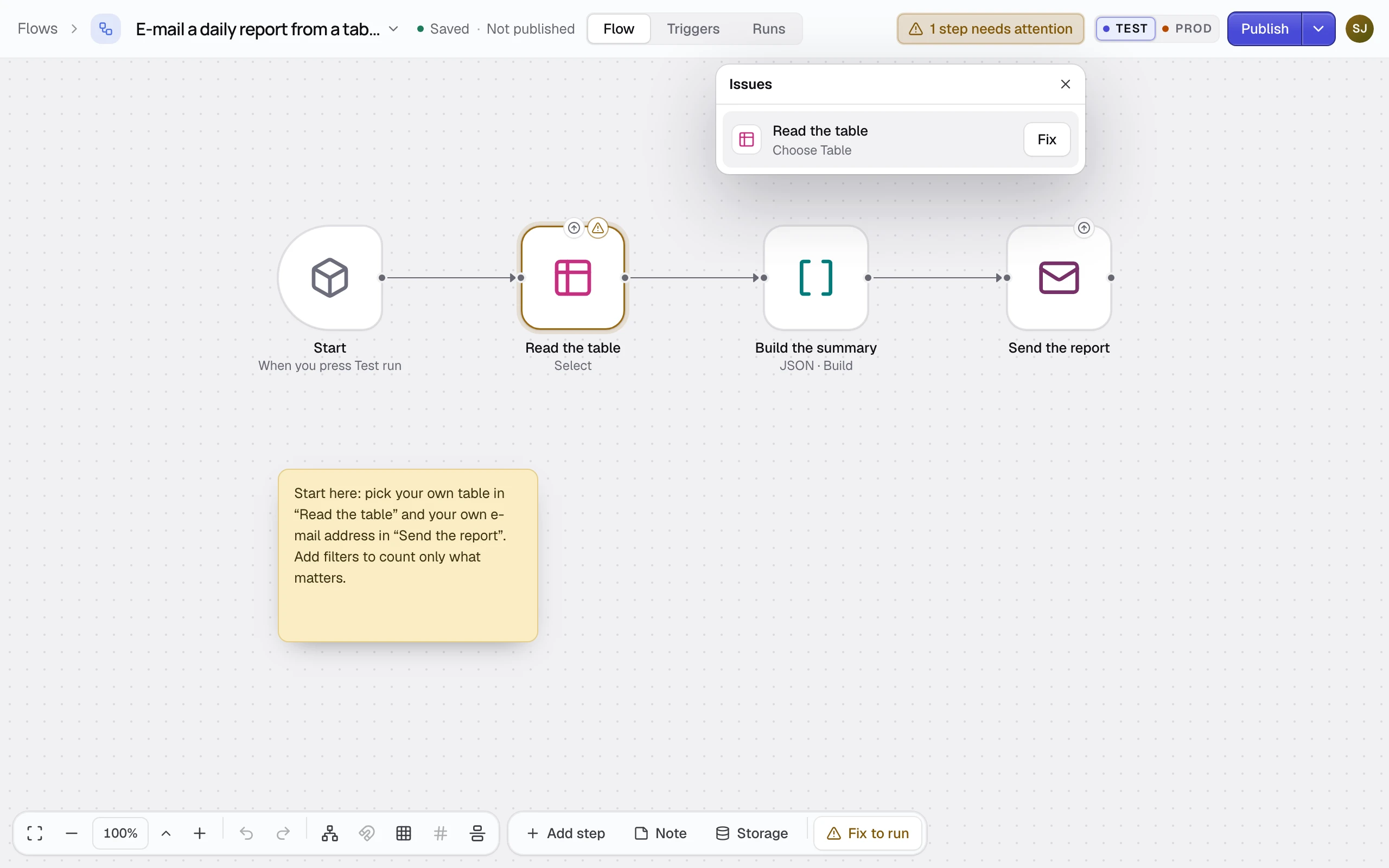
Fix what needs attention
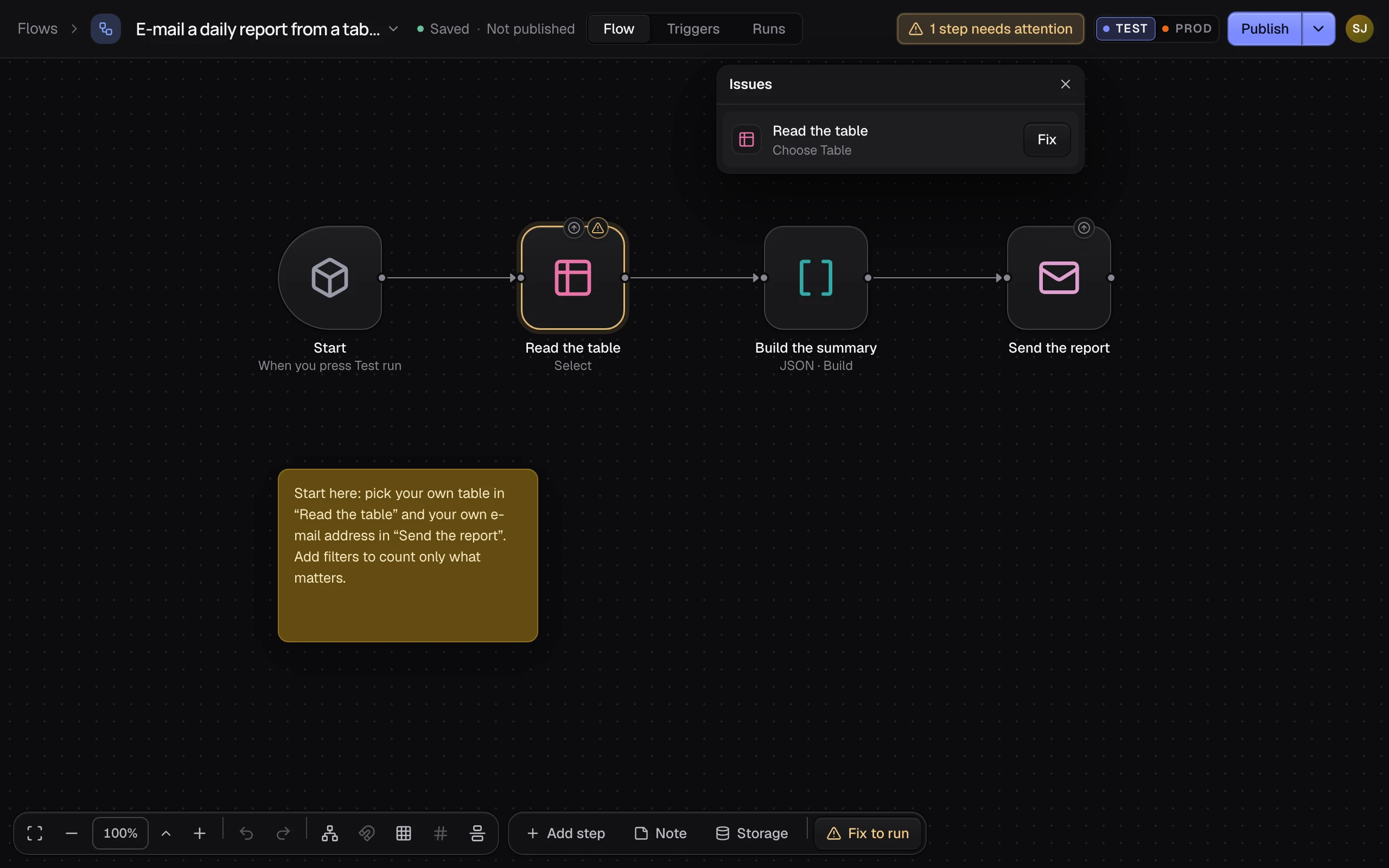
If the header shows 1 step needs attention (or more), click it and Fix each node. Until none is left, Publish opens this list.
Put your draft on Test
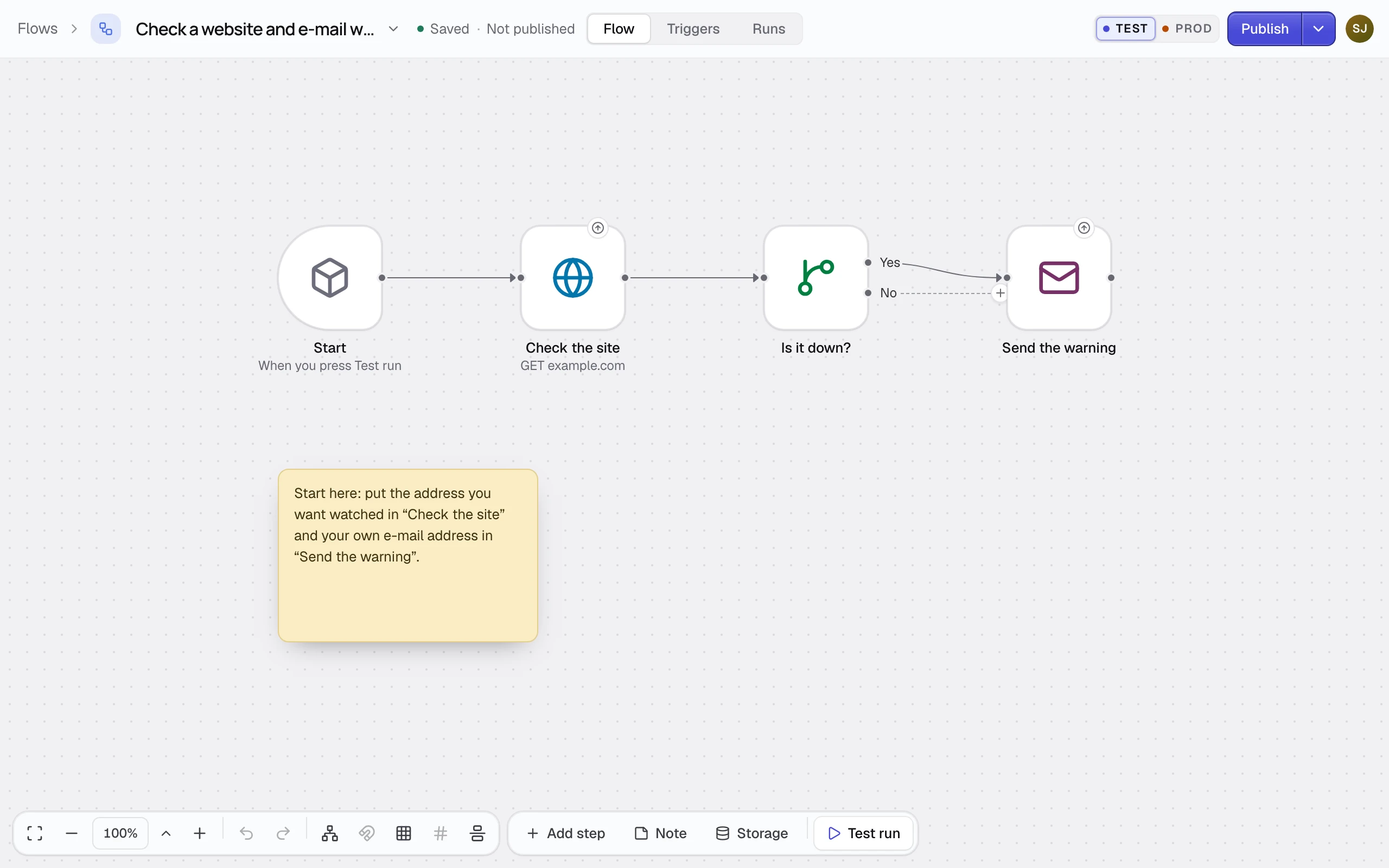
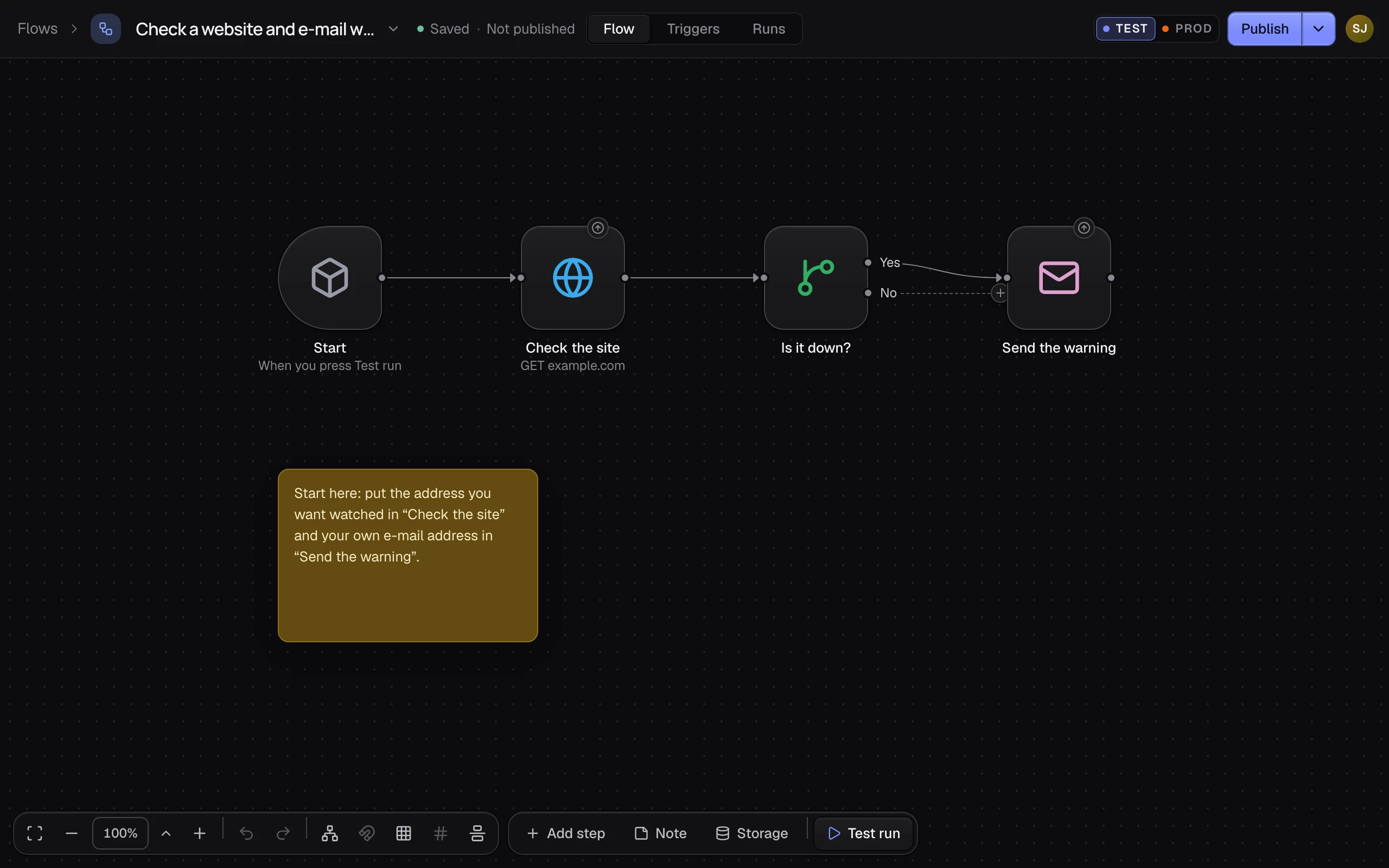
Click Publish. Your draft goes to Test as a new version: v1 is on Test. The header now says On Test · v1.
Open the Publish panel
Click the arrow beside Publish. The panel shows Your draft, Test and Prod, with the version each holds. Put on Test sends your draft again once it has changes.


Put the version on Prod
Under Test, click Put on Prod (it shows once Test holds a version Prod does not), check what changes for real traffic, and click Put on Prod again. The next run on Prod runs that version, and the triggers switch to its settings.


See what Prod runs
Click PROD in the switch at the top right: the canvas is read-only there. Edit in Test takes you back to your draft.


How it works
- Each draft you put on Test is the next version: v1, v2 and so on. Prod keeps its version until you put another one on Prod.
- The ⋯ beside Test and Prod has What changed, Use a different version…, Roll back…, and Take off Test or Take off Prod…, which takes the version off: nothing runs there until you put one back.
- All versions lists each version with what it changed. Put an earlier one on Test or Prod, or Start over from this to make your draft that version again.
If it did not work
- Put on Prod says Workspace admins only. Ask a workspace admin to do it, or to make you one.
- Nothing runs outside the editor. After Publish, Flowmage says Add a trigger to run it outside the editor. Add one on the Triggers tab: see How triggers work.
- Prod runs a version with a mistake. In the ⋯ beside Prod, click Roll back…, pick the earlier version, and confirm. The newer version stays in All versions. With one version only, it says No earlier version to go back to.