The editor
The editor is where you build a flow, on a canvas of linked nodes, with its controls, its grid, notes and issue list, under a header for the flow's name, views and publishing.
Why it matters
Everything a flow does is on its canvas: one node per thing it does, linked in the order they run.
How it works
Open a flow from Flows.
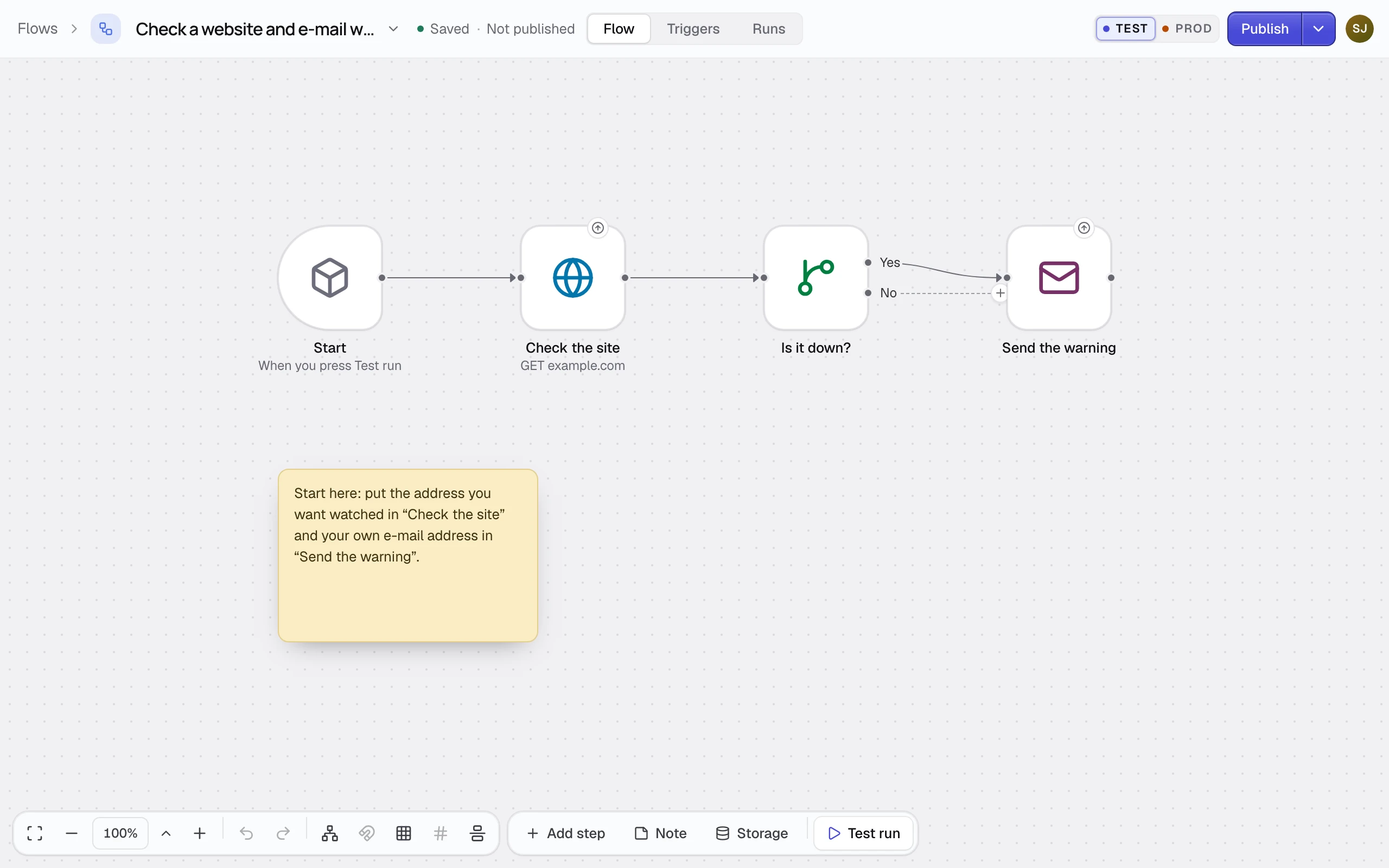
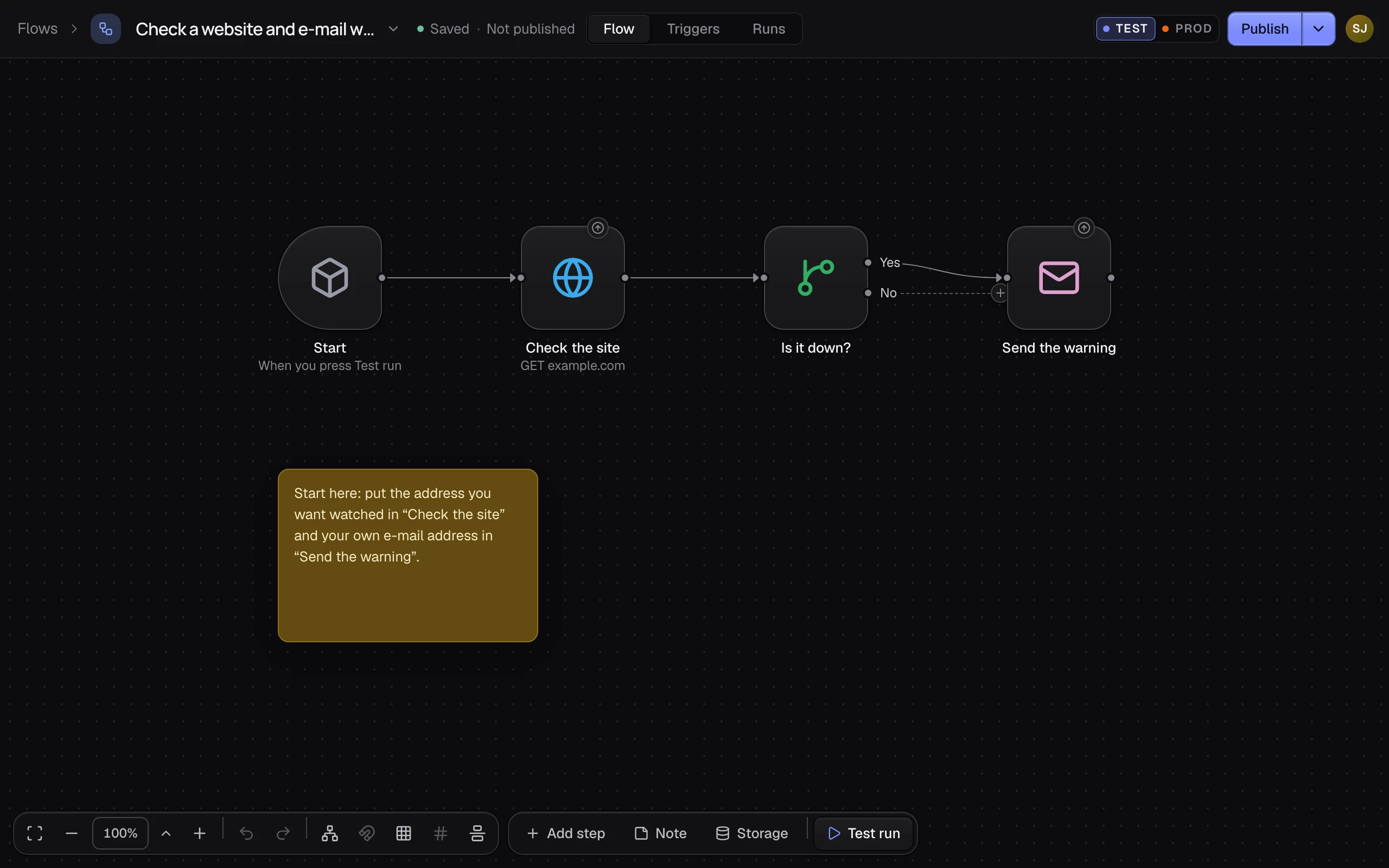
The header
| Part | What it does |
|---|---|
| Flows and the flow's name | Flows goes back to the list. The name opens the flow's menu: Rename, Settings…, Duplicate, Export, Delete… and more. |
| Saved and where it runs | Saving… while Flowmage saves, then Saved. Beside it: Not published, On Test · v1 or On Prod · v1. |
| Flow, Triggers, Runs | The canvas, what starts the flow, and its runs. |
| TEST and PROD | The environment you look at. PROD is read-only; Edit in Test takes you back. |
| Publish | Puts your draft on Test as a new version. Its arrow opens the Publish panel: see Publish to Test and Prod. |
The canvas tools
| Tool | What it does |
|---|---|
| Add step | Opens Add a step. |
| Note | Places a sticky note, written in Markdown, behind the flow. |
| Storage | Opens this workspace's tables, schemas and files. |
| Test run | Starts a draft run: see Test a flow. |
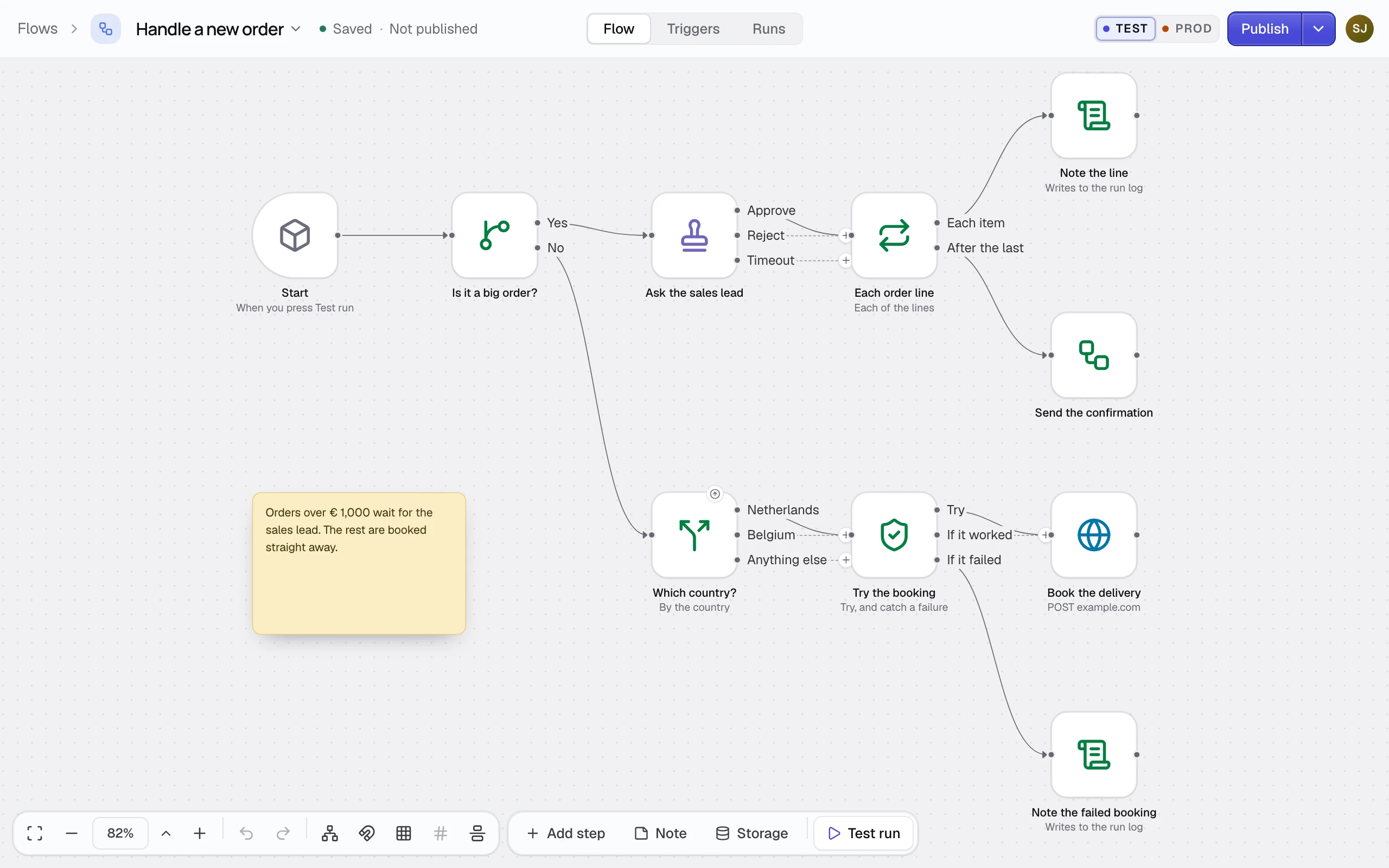
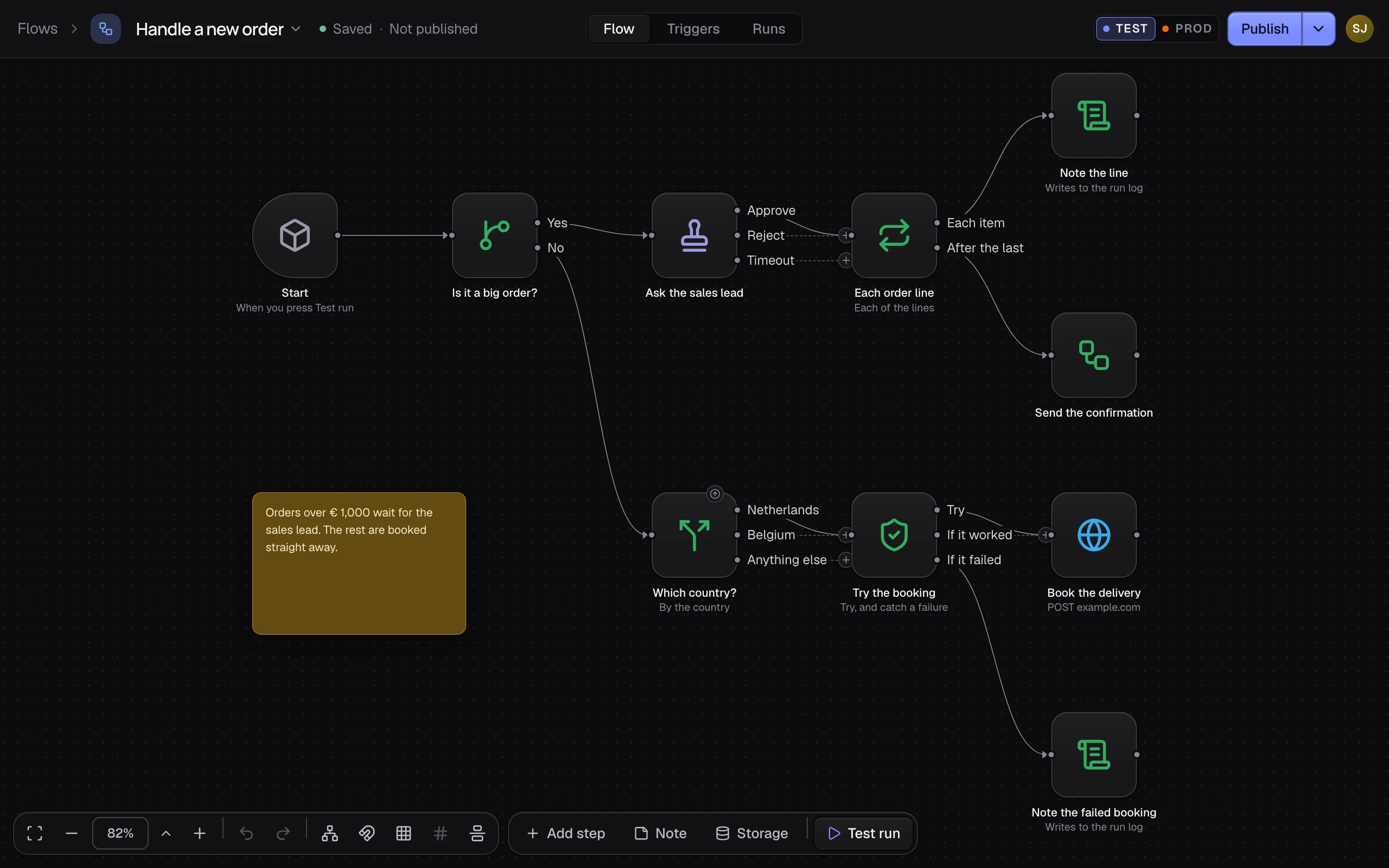
Bottom left sit Zoom to fit, Zoom out, the zoom level (click it for 100%), Zoom in, Undo, Redo and Tidy up, which lays the flow out from left to right.
The grid
With Snapping on, the default, a node you drag lands on the canvas's grid of dots. The grid's buttons follow Tidy up:
| Control | What it does |
|---|---|
| Snap to grid | Puts every node on the grid at once. |
| Coarse grid | Switches between the fine grid of 16 px and a coarse one of one node per cell. |
| Grid lines | Draws the cells as lines instead of dots. |
| Alignment guides | Shows a line while you drag, where a node lines up with another. |
To drag freely, switch off Snapping in the menu under the arrow beside the zoom level. That menu also has Zoom to fit, Zoom to 100% and Settings panel on select: with it on, a click opens a node's settings in a panel at the right, and a double-click opens the dialog.
The issue list
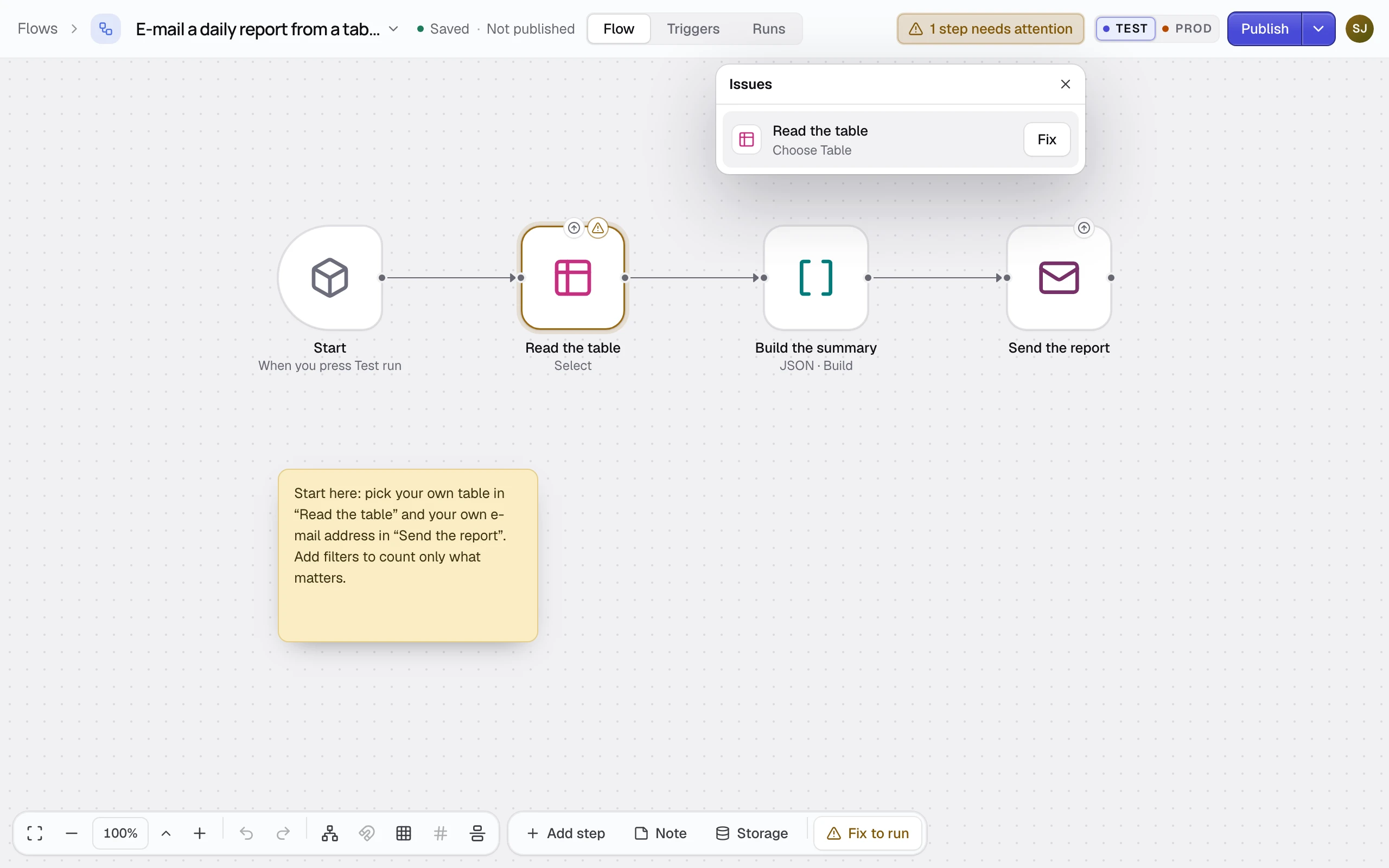
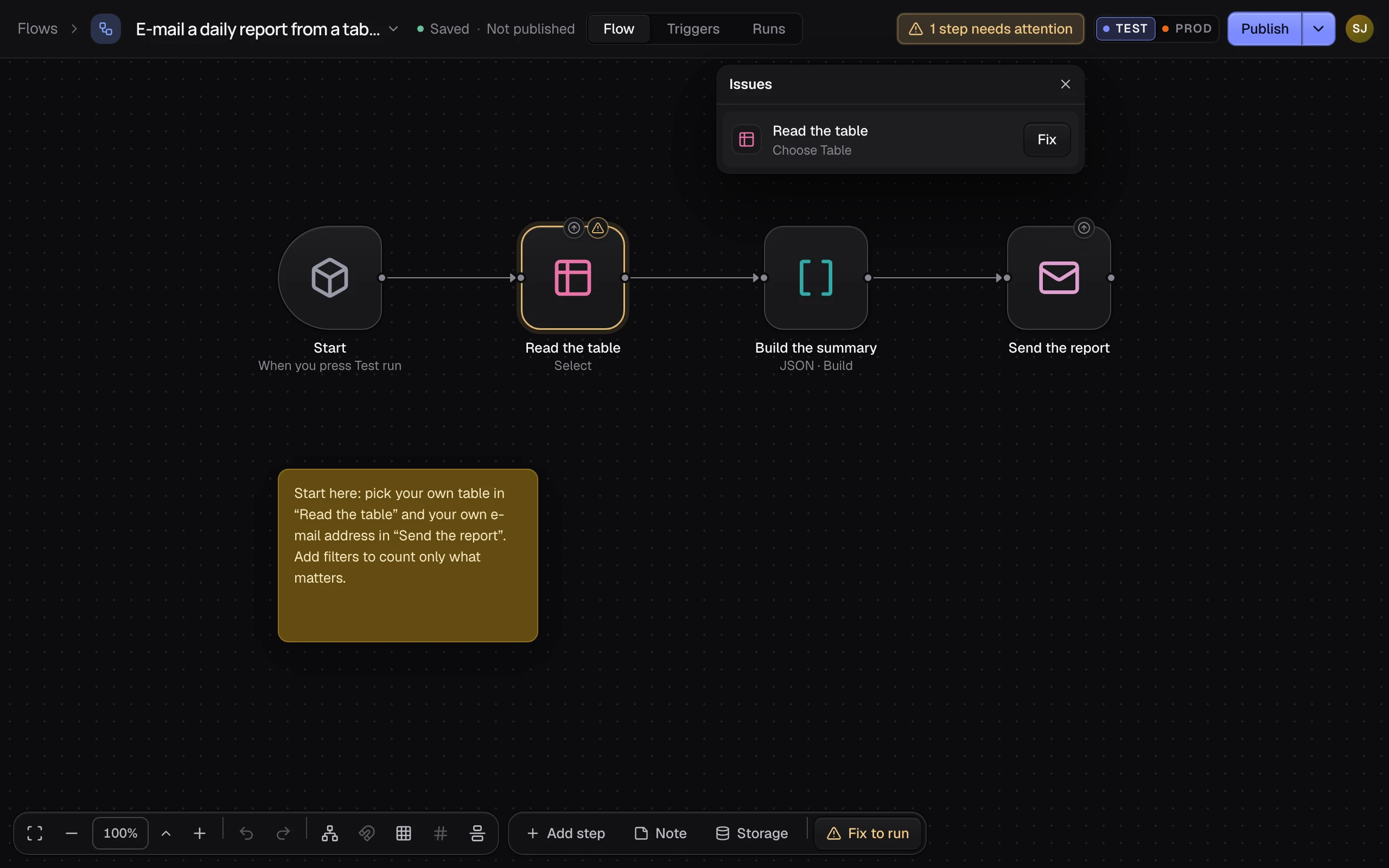
When a node needs a setting, the header shows a count such as 1 step needs attention. Click it for each node and what to fix; Fix opens it. Until then, Test run reads Fix to run and Publish opens the list.
Node versions
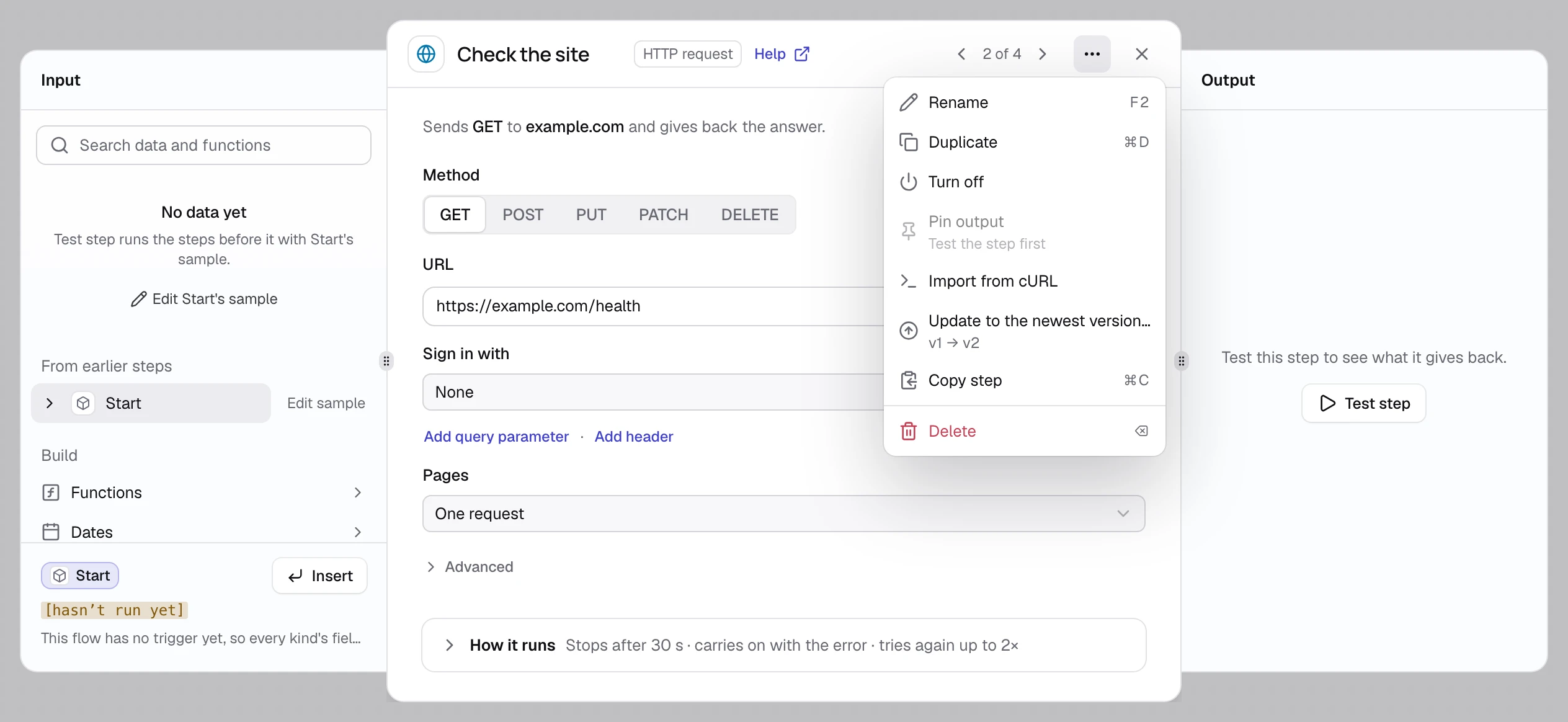
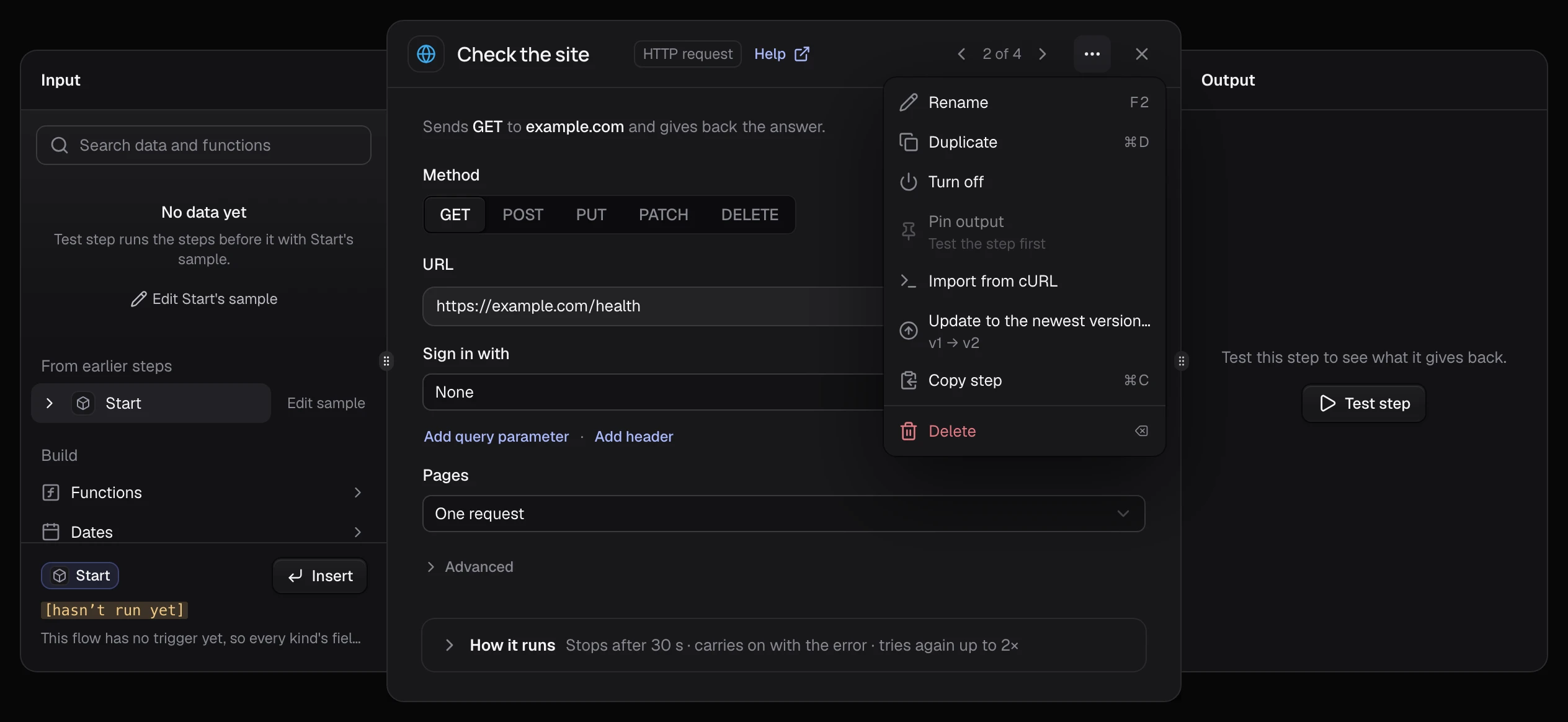
A node keeps the version it was added with, so your flow keeps working as nodes improve. A small arrow badge means a newer one exists: in the node's ⋯ menu, choose Update to the newest version…, which shows the move, such as v1 → v2.
An example
A blank flow opens with Start and a tile for the first node: click it, or press Tab, and pick what the flow does first.
Limits
- The editor needs a pointer, a keyboard and a wide screen. On a phone, a flow shows Flowmage needs a desktop.
- It changes the draft only. What a trigger runs changes when you publish.