Test a flow
Try a flow while you build it: set the data it starts with, test one node, pin or edit its output, and run the whole draft with Test run.
Steps
Set the data the flow starts with
Open Start and fill in Sample data, as Fields or JSON. Runs from the editor start with this trigger sample; real runs get what their trigger receives. Use the last real run copies what the last run started with.
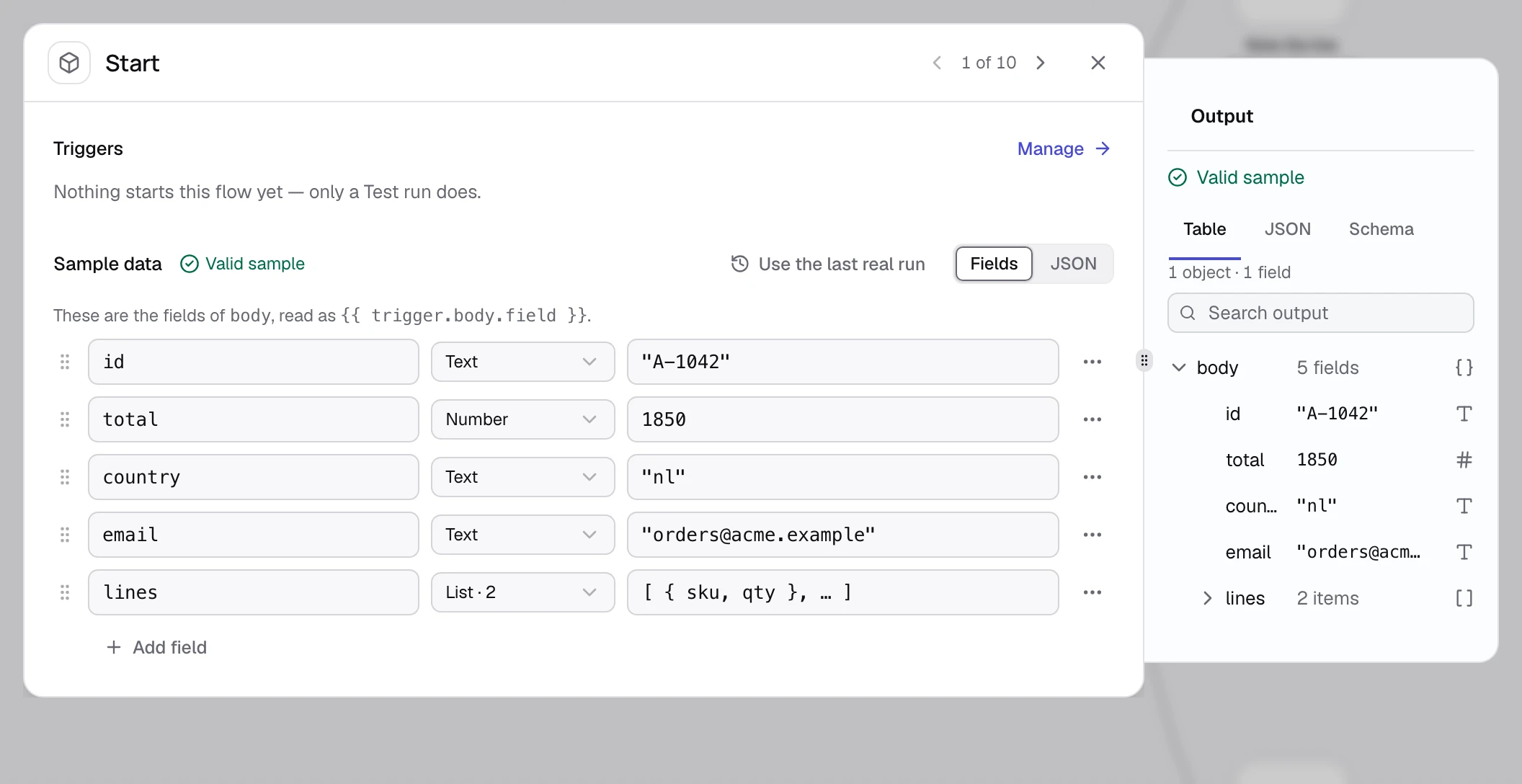
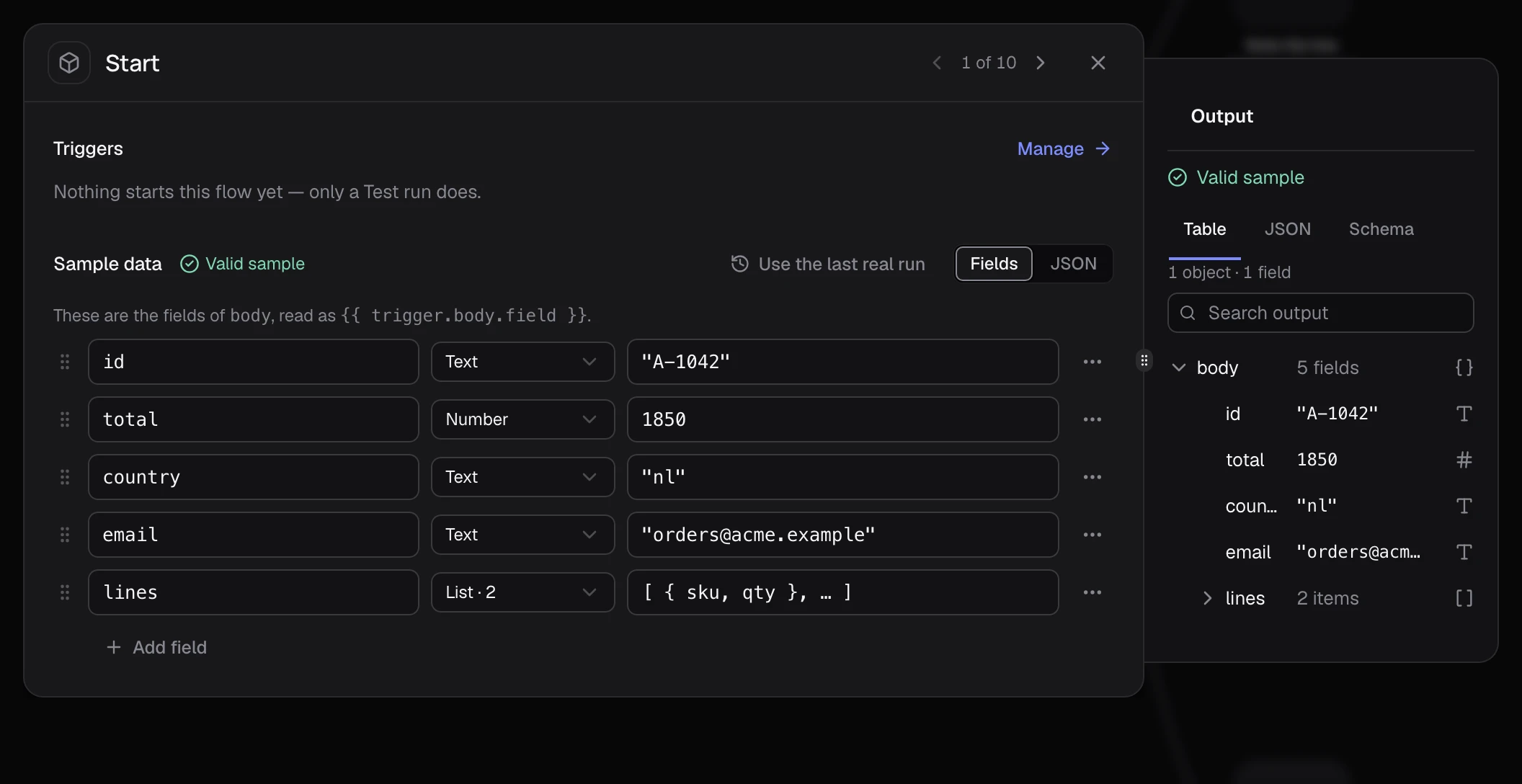
From another node, Edit sample beside Start under Input brings you here.
Test one node
Open a node and click Test step, or press Cmd+Enter (Ctrl+Enter on Windows). Nodes before it that have not run are tested first. Output shows what came back, such as Worked · 5 ms · just now.


Click the pin beside Test step to keep that output: Test run then skips this node and uses its pinned output.
Edit the output by hand
To try the next nodes with other data, choose Edit output in the ⋯ menu at the top of the dialog, change the JSON, and click Save and pin. The output says Pinned, written by hand.


Run the whole draft
Close the node and click Test run at the bottom of the canvas. The whole draft runs on Test, and the run opens below the canvas with a row per step under Steps. Click a row for what that step ran with and gave back.


How it works
- A Test run makes a draft run: your draft as saved now, on Test, listed on the flow's Runs tab.
- A pinned output stays until you click the pin again. When the node's settings change, its output says Out of date.
If it did not work
- Output shows a sentence instead of Test step. Some nodes, such as Subflow and Ask for approval, run only as part of the flow. Click Test run instead.
- Test run keeps using an old output. The node's output is pinned. Click the pin to unpin it.
- The button says Fix to run. A node still needs a setting. Click the count in the header, such as 1 step needs attention, then Fix.