Write an expression
Fill a node's field from the run's data: pick a value in the Input pane, change it with a function, and see what the field holds before the flow runs.
Steps
Pick a value
Double-click the node and click in the field. In the Input pane, under From earlier steps, open a step and click the field you need. It goes in at the cursor as a chip, such as ID · Start; the line under the field shows its value from the last test.
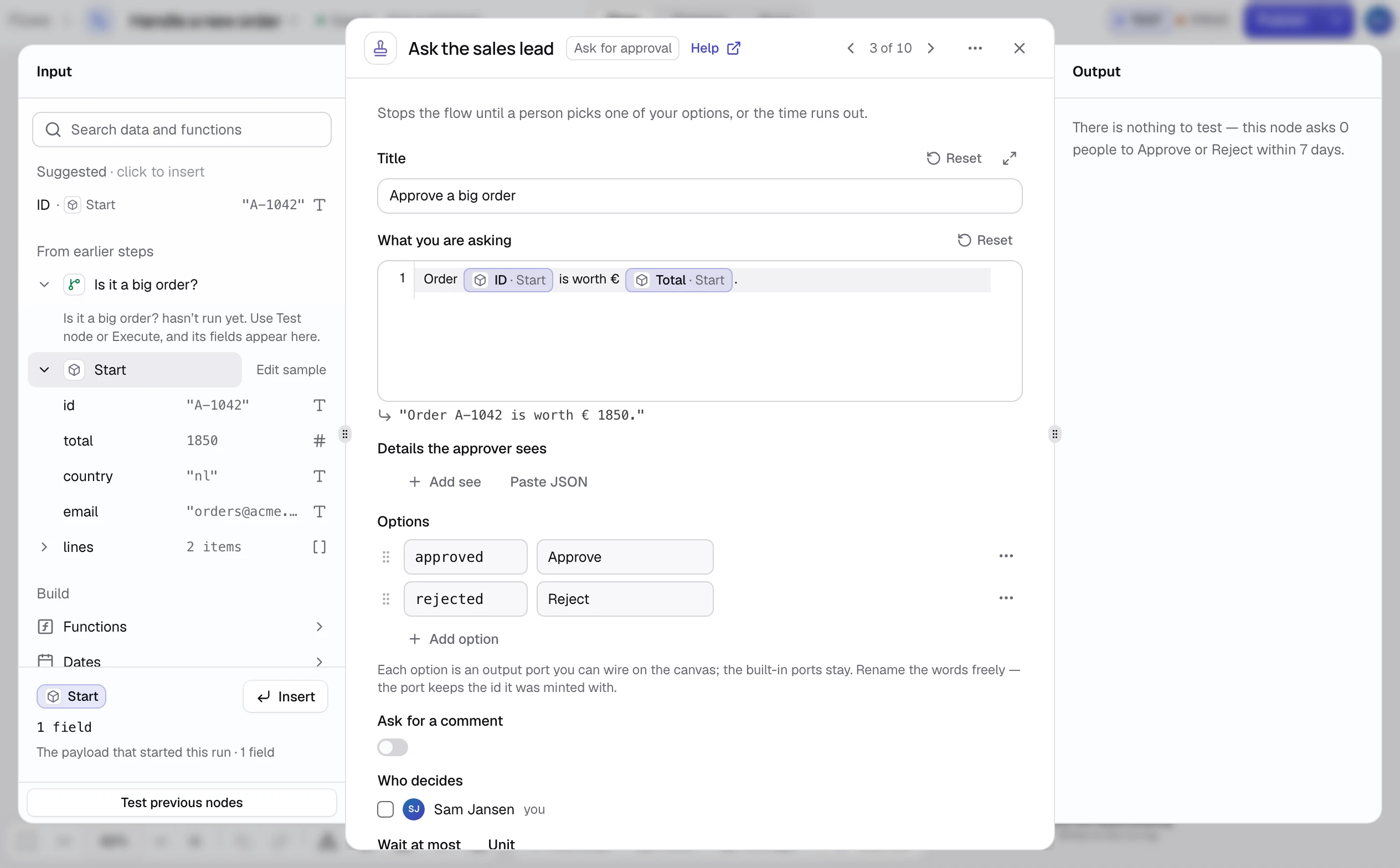
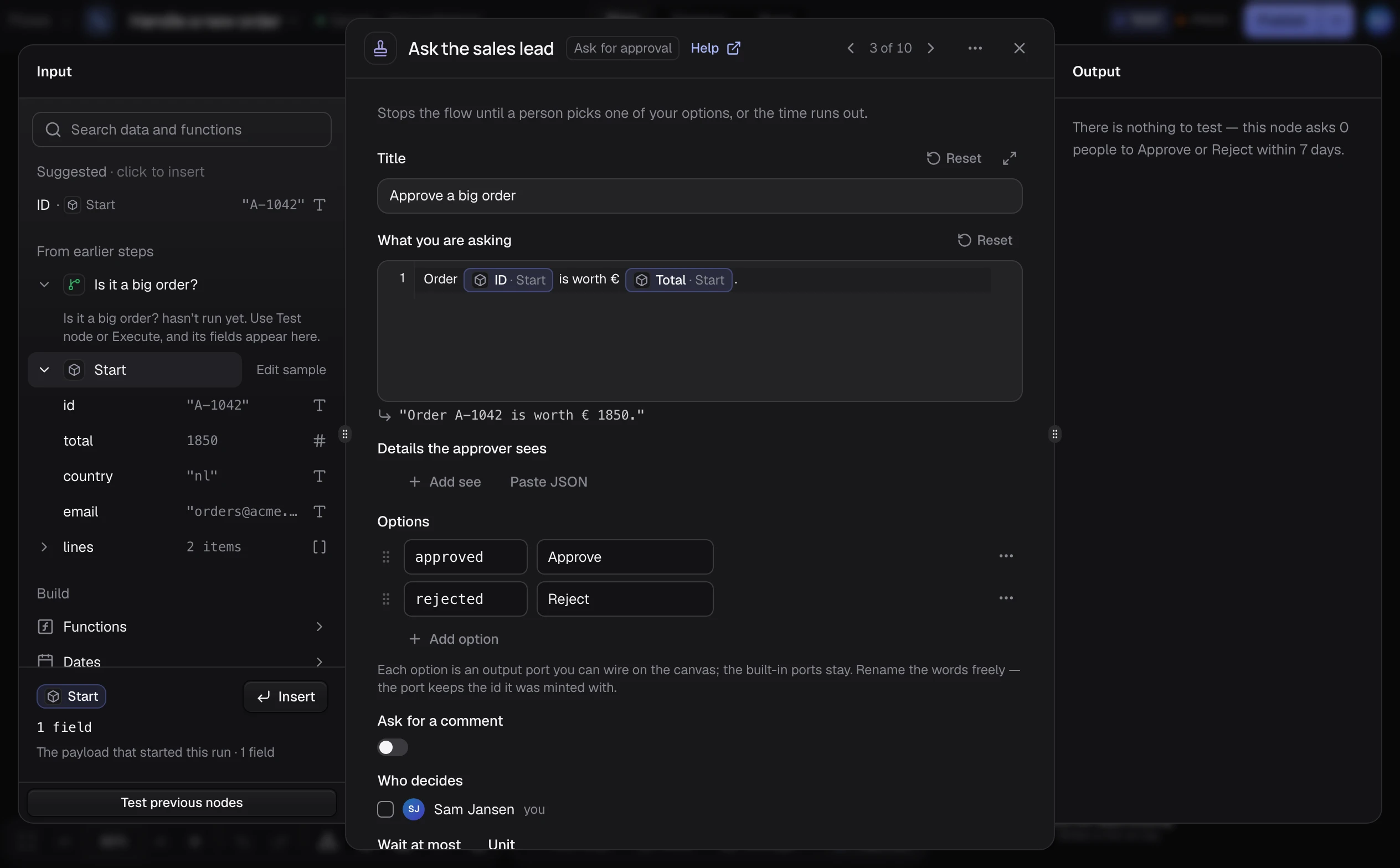
Change it with a function
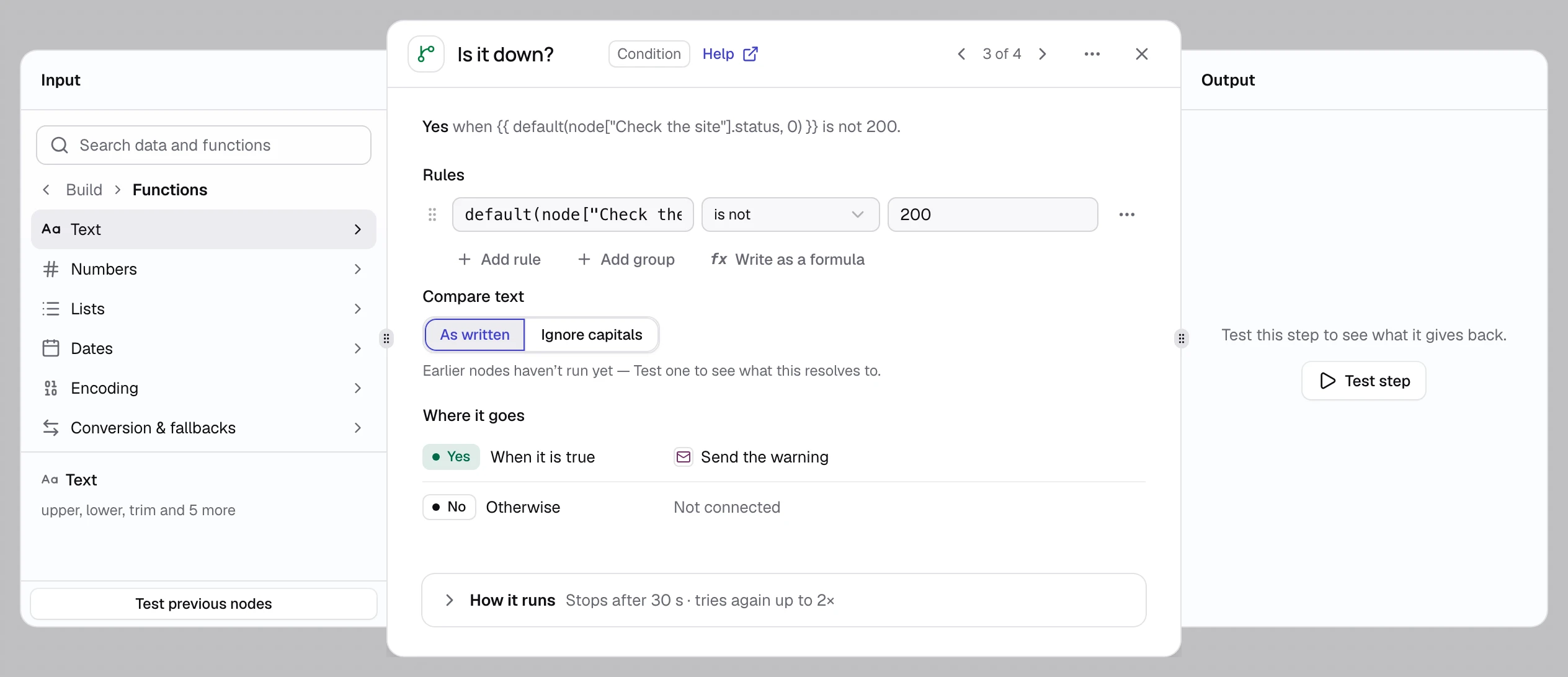
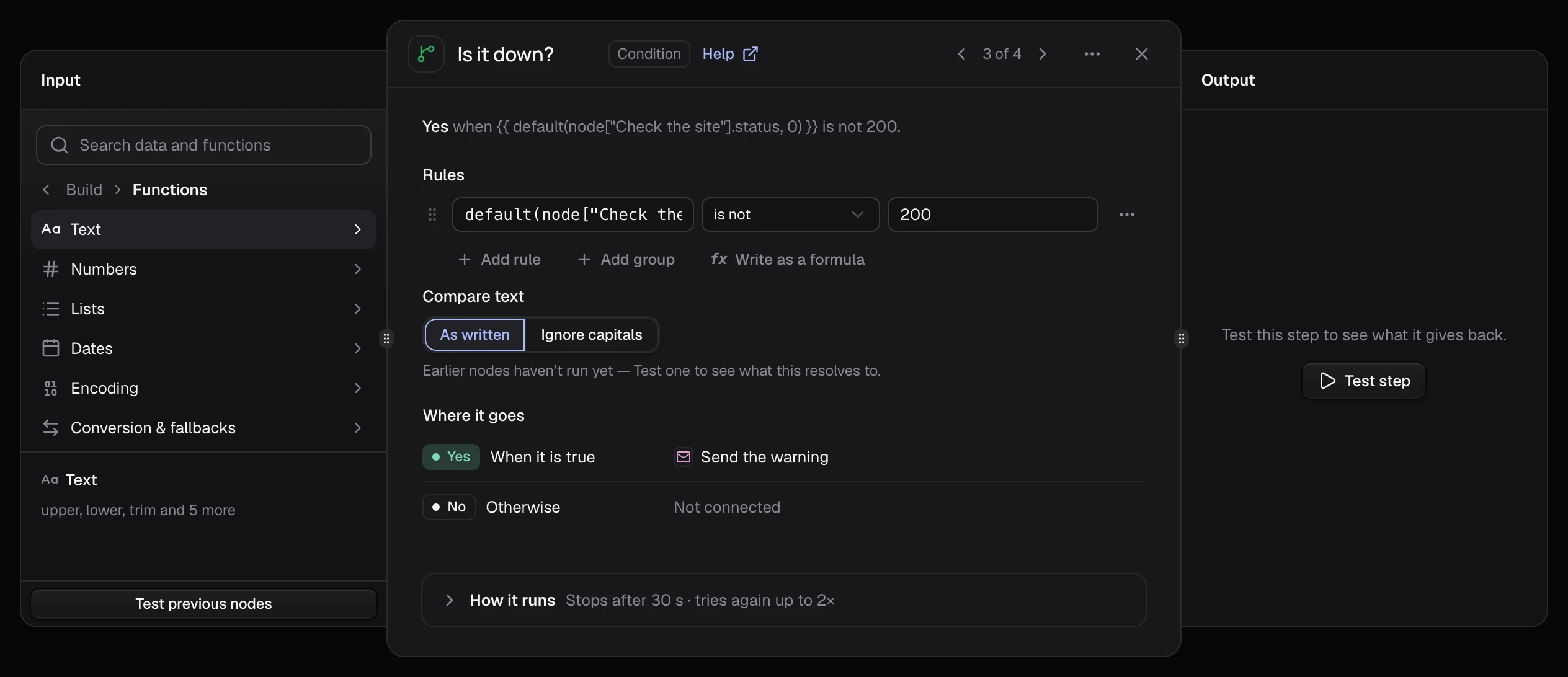
Under Build, click Functions, pick a group such as Text, and click a function. It goes in at the cursor, filled from your data where it fits, with its first value selected to replace. Dates, Secrets and Files are under Build too. Or type {{ and pick from the list.
How it works
Each {{ }} is worked out when the node runs, from that run's data; the text around it stays as typed. A field that is one expression and nothing else keeps the value's kind, so a list stays a list. fx at the end of the field shows the expression as stored.
If it did not work
- The line under the field is red. Find its message on When an expression fails.
- A value reads hasn’t run yet. No sample data yet: click Test previous nodes at the foot of the Input pane.
- The field reads Resolves to nothing. The step's output has no such field. Click the field it suggests, or pick the value again.