Store data in a table
Make a table with typed columns in Test, add rows, and let your flows insert, find and change rows with the Tables nodes. Put it on Prod when it is ready.
Steps
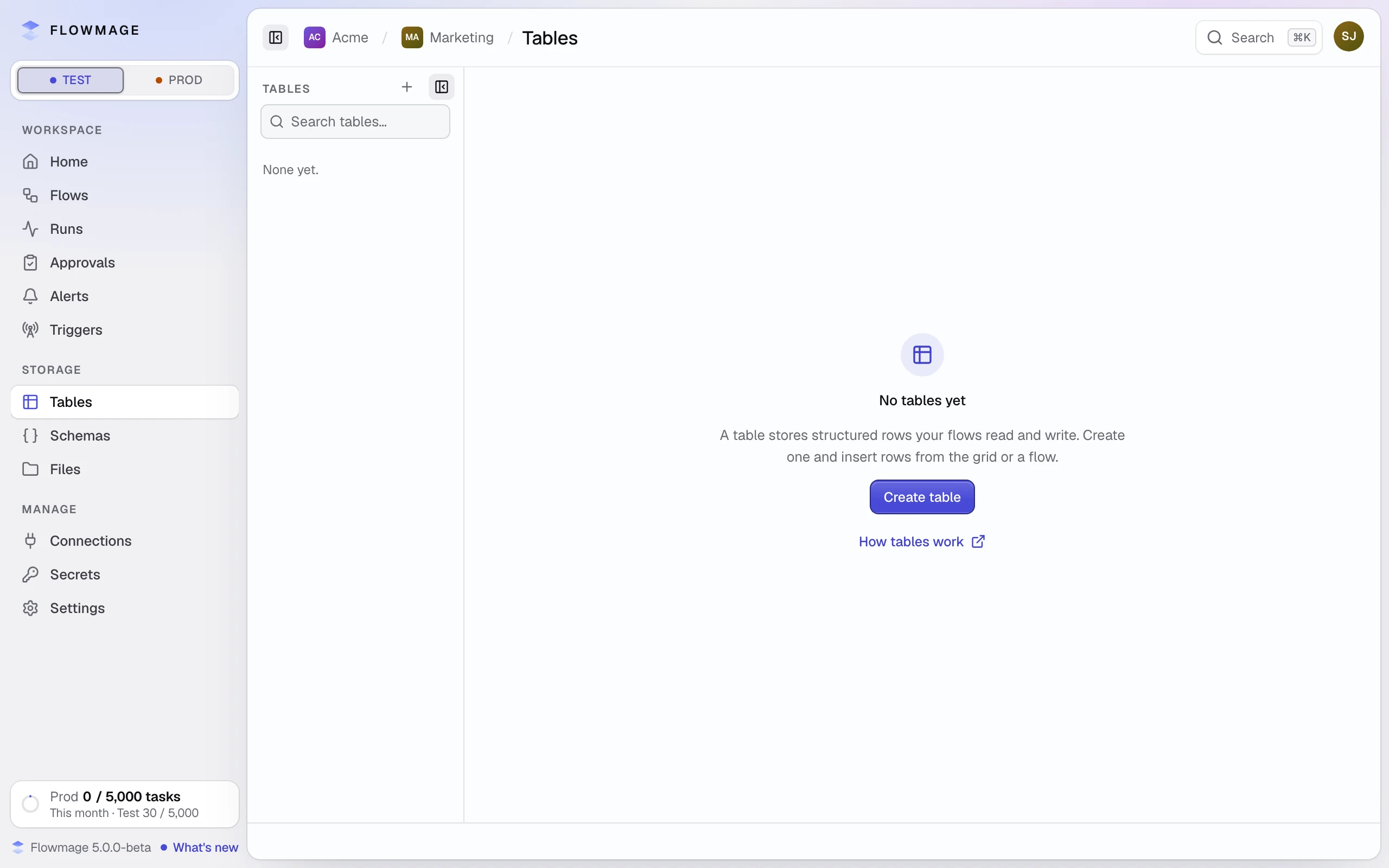
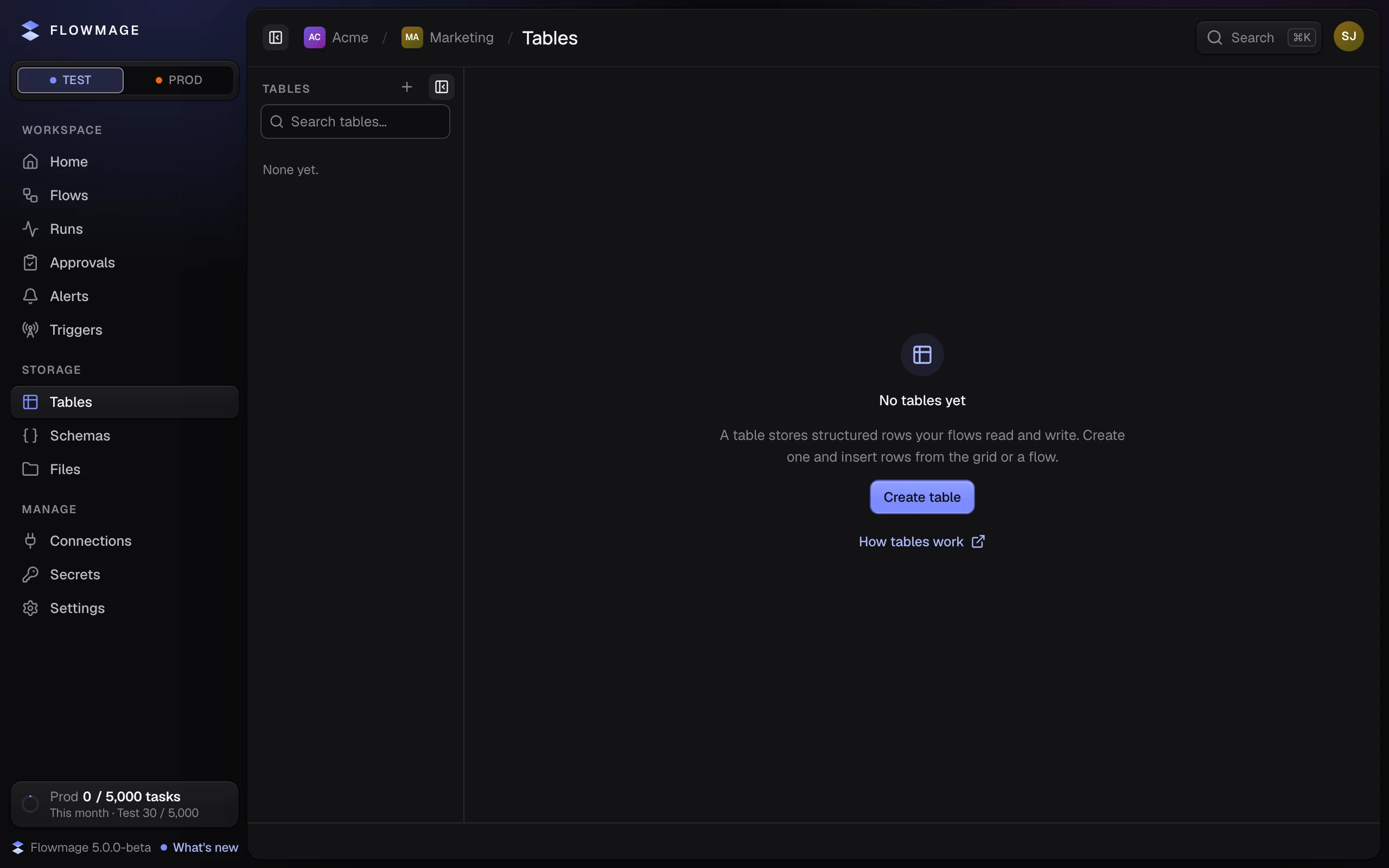
Name it and add its columns
Click Create table and type its Name. Give each column a Name and a Type: Text, Number, Yes/No, Date & time or JSON.


Technical details
| Setting | What it does |
|---|---|
| Required | Refuses a row that leaves the column empty. |
| Unique values | Keeps a value to one row. For text, number and date-time columns. |
| Key | How flows name the column: made from the name and fixed once the table is saved, so renaming a column breaks no flow. |
In Add a column… or paste a list, a comma ends a column and :number sets a type, so Customer, Email, Amount:number adds three columns.
Create the table
Click Create table: Table created. It opens on No rows in Test yet.
Add a row
Click Add row…, fill in the fields and click Create row; an empty field gets the column's default. Flows use the Tables nodes: Insert, Select, Update and Delete.
Put it on Prod
When its flows go to Prod, click Put on Prod… in the table's ⋯ menu; it lists the columns that change on Prod before you confirm. Rows stay apart: a run on Test uses the Test rows, a run on Prod the Prod rows.
If it did not work
- Add at least one column — type its name in the empty row. A table needs a column before it can be saved.
- No tables on Prod yet. No table has been put on Prod. Click Open in Test, or ask a workspace admin to put it on Prod.
- This table changed elsewhere — refresh and try again. Someone changed the columns after you opened them.